
Analysis of MEGASync
Intro
In the world of cybersecurity, it’s essential to understand the tools and tactics that malicious actors use to protect our systems and clients. MEGASync is a tool designed for syncing files across devices and cloud storage, but unfortunately, it’s also been used for nefarious purposes by a wide variety of threat actors.
Throughout this post, we’ll go over the various ways in which threat actors use MEGASync to carry out data exfiltration and we’ll also explore how incident responders can use this information to detect and respond to these attacks quickly and efficiently.
Whether you’re a cybersecurity professional looking to enhance your incident response skills or an organisation seeking to improve your security measures, this post is for you. We’ll provide you with valuable insights into how MEGASync works, the forensic aretfacts it leaves behind, and how you can use these when you discover that MEGASync was used during your next incident!
What is Mega and why do threat actors use it?
Mega is a file hosting and sharing service that prioritises privacy and security, making it appealing to both regular users and threat actors. Bad actors use Mega’s anonymity and synchronization features to distribute malware and steal sensitive data.
What is MEGASync?
MEGASync is a GUI based tool provided by Mega that allows users to sync their files across different devices and locations, making it easy to access and share files from anywhere.
There is a commandline version “megacmd” which is used just as often, but theres already a great blog on this already: https://arista.my.site.com/AristaCommunity/s/article/Forensic-Investigation-of-the-MEGAcmd-Client
Note: Testing conducted on MEGASync64.exe version 4.8.9
Registry Changes
When installing MEGASync, various registry keys are created, which can assist in determining the user account used during installation and the installation’s date and time. The first can be found under the “uninstall” key:
· “HKLM\SOFTWARE\WOW6432Node\Microsoft\Windows\CurrentVersion\Uninstall\MEGASync”
the second by reviewing the HKCU (NTUSER.dat) for:
· “HKU\S-1–5–21–3401301702–830066622–3748846484–1001\SOFTWARE\Microsoft\Windows\CurrentVersion\Notifications\Settings\MegaLimited.MEGASync”
Note: There are others, including a Scheduled task created for MEGASync updates, however, these are of little value during an incident.
FileSystem Changes
The key configuration files associated with MEGASync are typically written to the “%userprofile%\AppData\Local\Mega Limited” directory, though it’s worth noting that this may vary if a non-standard installation location was used. So its worth collecting the whole directory.
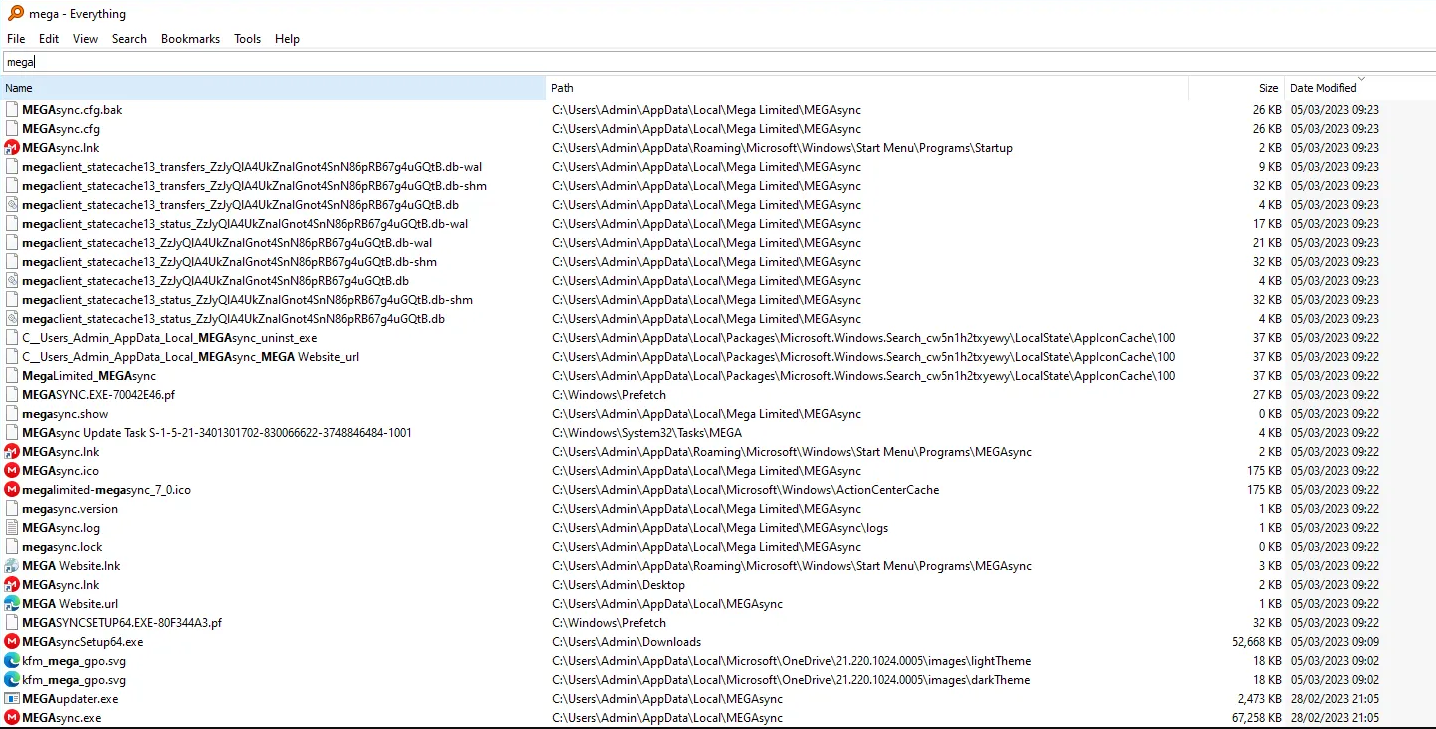
Configuration Files
During installation, MEGASync creates a configuration file named “MEGASync.cfg” in “%userprofile%\AppData\Local\Mega Limited\MEGASync\”, along with a corresponding “.bak” backup file.
Unfortunately this is now encrypted and provides no useful information — however its worth a check in case it changes in newer versions.
Note: In older versions of MEGASync it was possible to decode the Base64 but in the tested version MEGA have likely now encrypted this.
Database Files
Following the completion of installation, MEGASync generates three sqlite databases located at “%userprofile%\AppData\Local\Mega Limited\MEGASync”. These databases, which consist of a main file, a write-ahead log file, and a wal-index file, include:
· megaclient_statecache13_transfers_<random_string>.db
· megaclient_statecache13_status_<random_string>.db
· megaclient_statecache13_<random_string>.db
Reference: https://www.sqlite.org/walformat.html
Note: To ensure complete analysis, it is recommended to extract all three databases (and all parts).
The Transfers.db database is an encrypted SQLite database that is active throughout the Mega cloud session, providing valuable context while present, but is not practical to read directly from the file system due to encryption
Status.db, again, contains nothing of value for an incident responder.
statecache13_<random_string>.db is very valuable!
Upon user sign-in, the Mega Cloud application’s existing files and folders are added to the “statecache13_<random_string>.db”, as per the analysis.
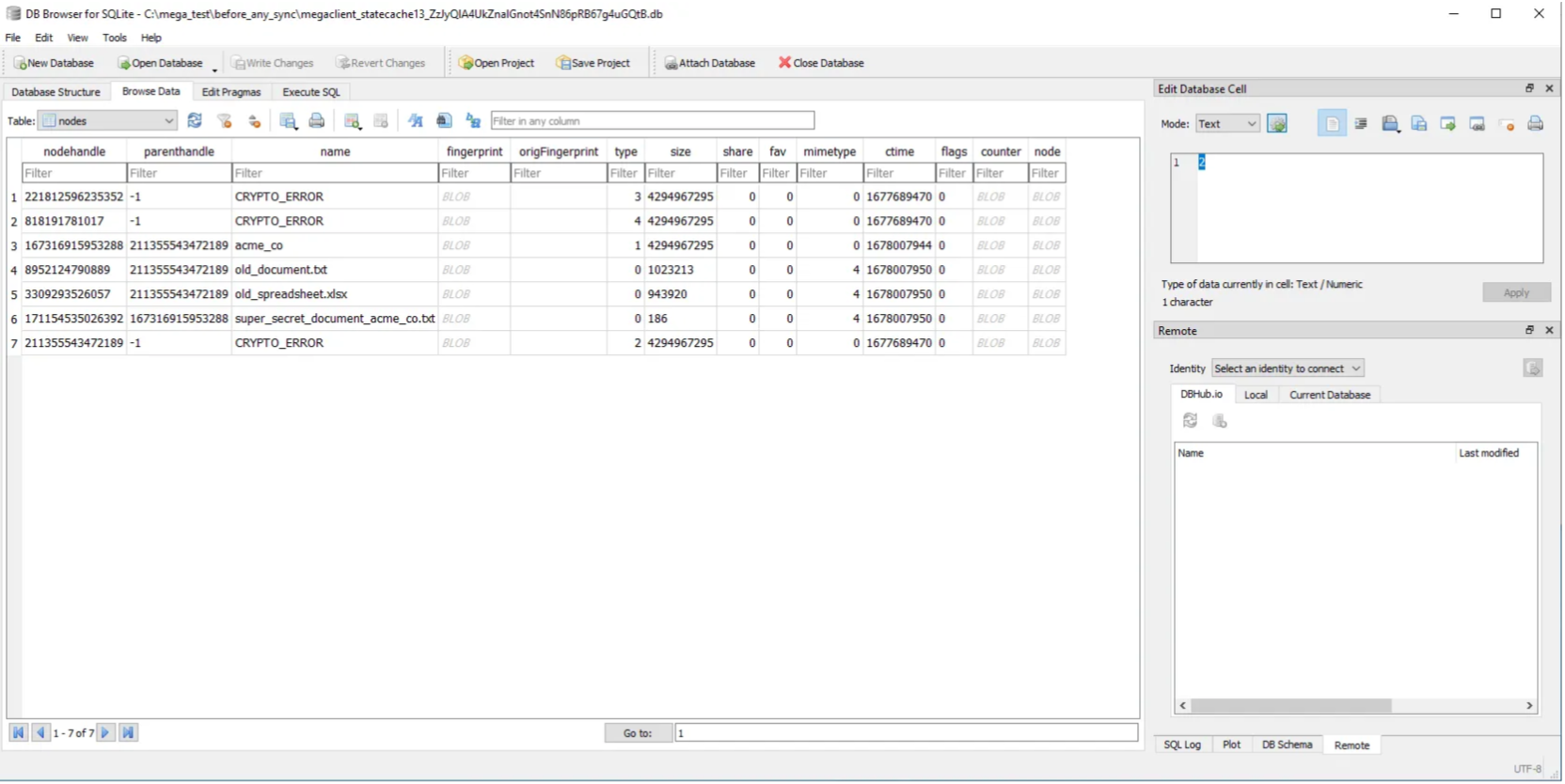
Before any synchronisation but after sign in.
The database is updated as new files are uploaded to the cloud storage.
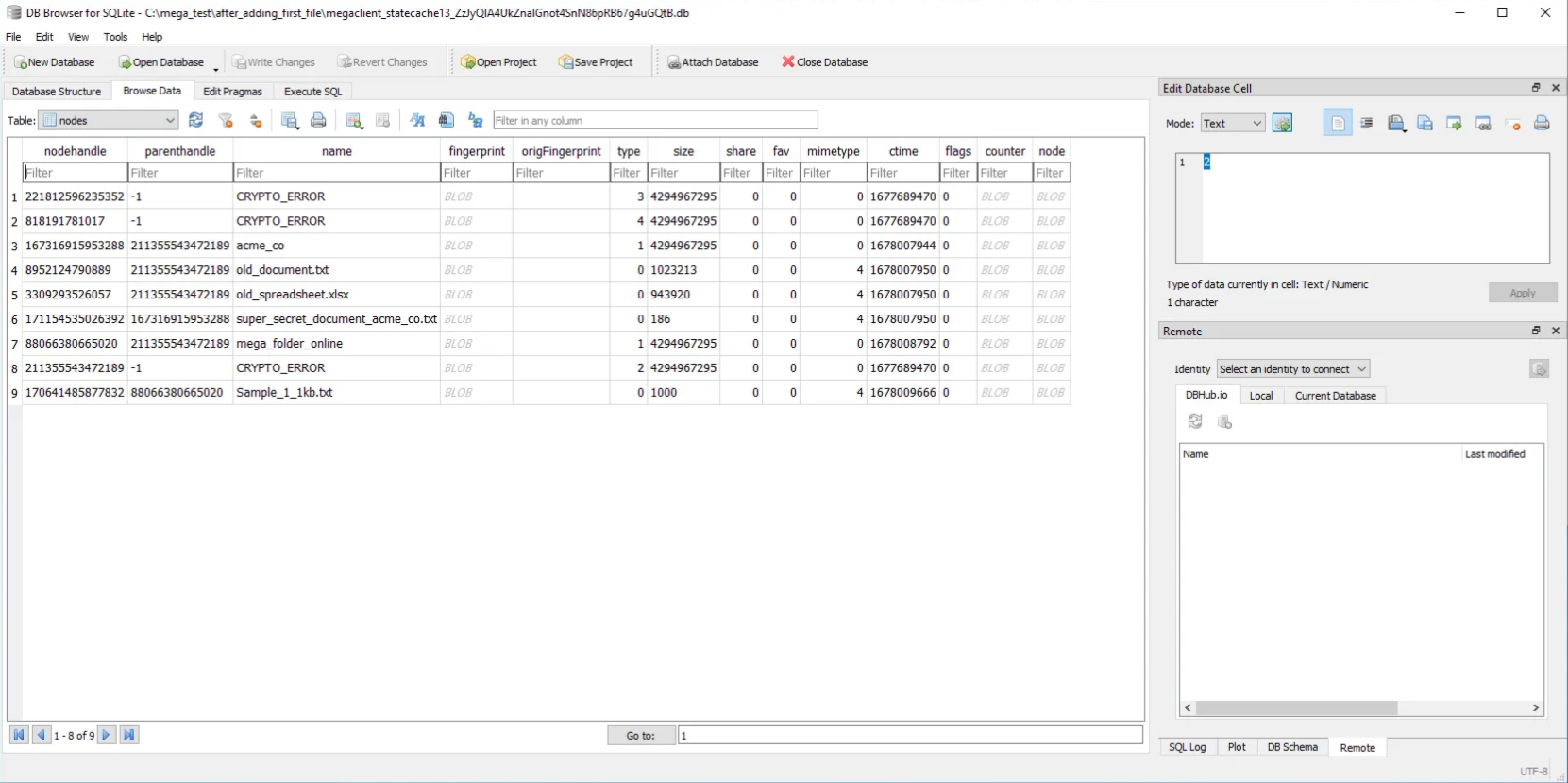
Updated database after single file upload.
Note: The Mega database “megaclient_statecache13_<random_string>.db” includes a comprehensive record of all files and folders in the cloud storage account, including their name and size. Additionally, the “ctime” field denotes the UNIX timestamp indicating the file’s upload time to Mega.
To view .db files, I recommend using the SQLite Browser, which can be found at https://sqlitebrowser.org/.
MEGASync databases persist even after the process is terminated, but not after a clean uninstall. This can reveal information about the files and folders stored within the Threat Actors’ MEGA account, potentially uncovering additional compromises, and providing compelling evidence.
Log files
MEGASync stores its log files in the “MEGASync.log” file located at “%userprofile%\AppData\Local\Mega Limited\MEGASync\Logs.” These logs contain extensive information that can be helpful for incident response. Notably, several key log entries, detailed below, can be used to search the logs quickly and effectively.
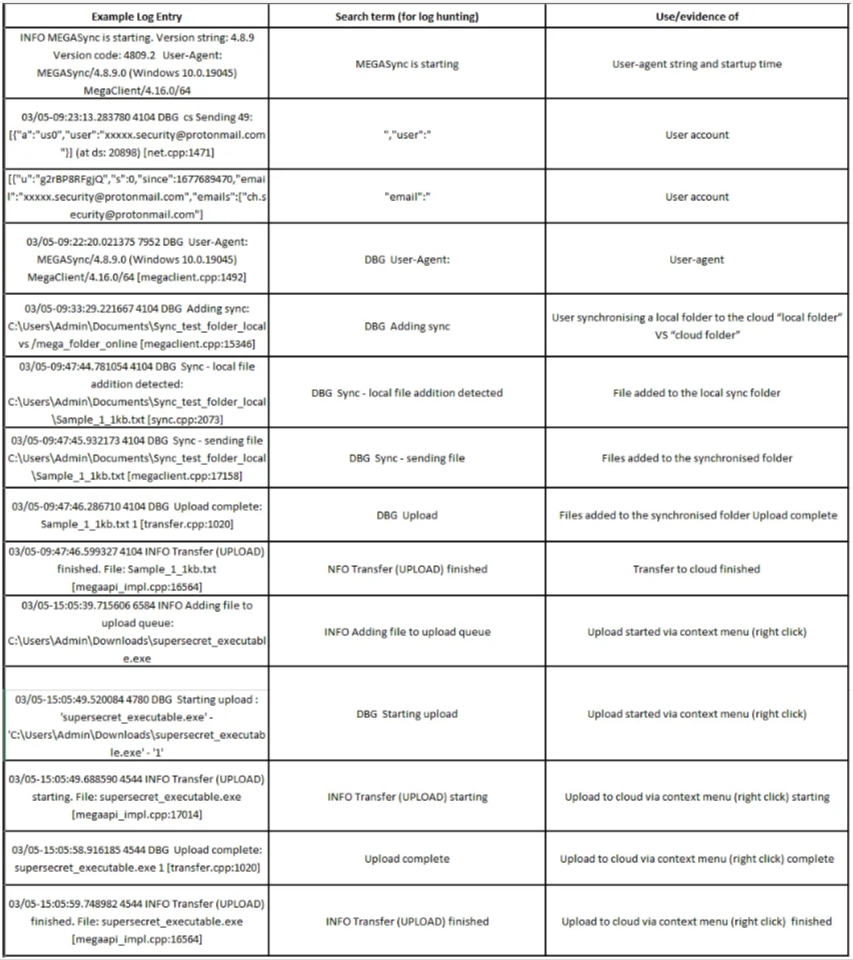
By collecting log files, you can search for “(Upload) Finished” using a text editor like Notepad++ to highlight the files that have been successfully uploaded to the client account. This approach is more effective than searching for “Sync — sending file” as the “Upload Finished” event confirms the completion of the upload process. The method used for analysing log files will depend on individual preference and requirements.
Network Traffic
Most of the evidence related to MEGASync’s usage is erased when a threat actor uninstalls the tool or performs a cleanup operation. However, a well-configured firewall can provide valuable insights into the extent of MEGASync’s usage.
Note: While firewalls can provide some insight into uploaded files, they do not provide specific details. Additional sources, such as .lnk files and shellbags, are necessary to provide further context, but this is beyond the scope of this blog.
To hunt for evidence of MEGASync usage in firewall logs, search for “UL” for file uploads and “DL” for file downloads in addition to the user-agent (UA) string:
“MEGASync/4.8.9.0 (Windows 10.0.19045) MegaClient/4.16.0/64”
Note: that the UA details may vary depending on the version and source device.
Although MEGASync doesn’t include the filename in the URL during upload, a unique file identifier is kept across upload chunks. Separating this part of the path and running a unique function reveals the total number of files uploaded, in this case 4.
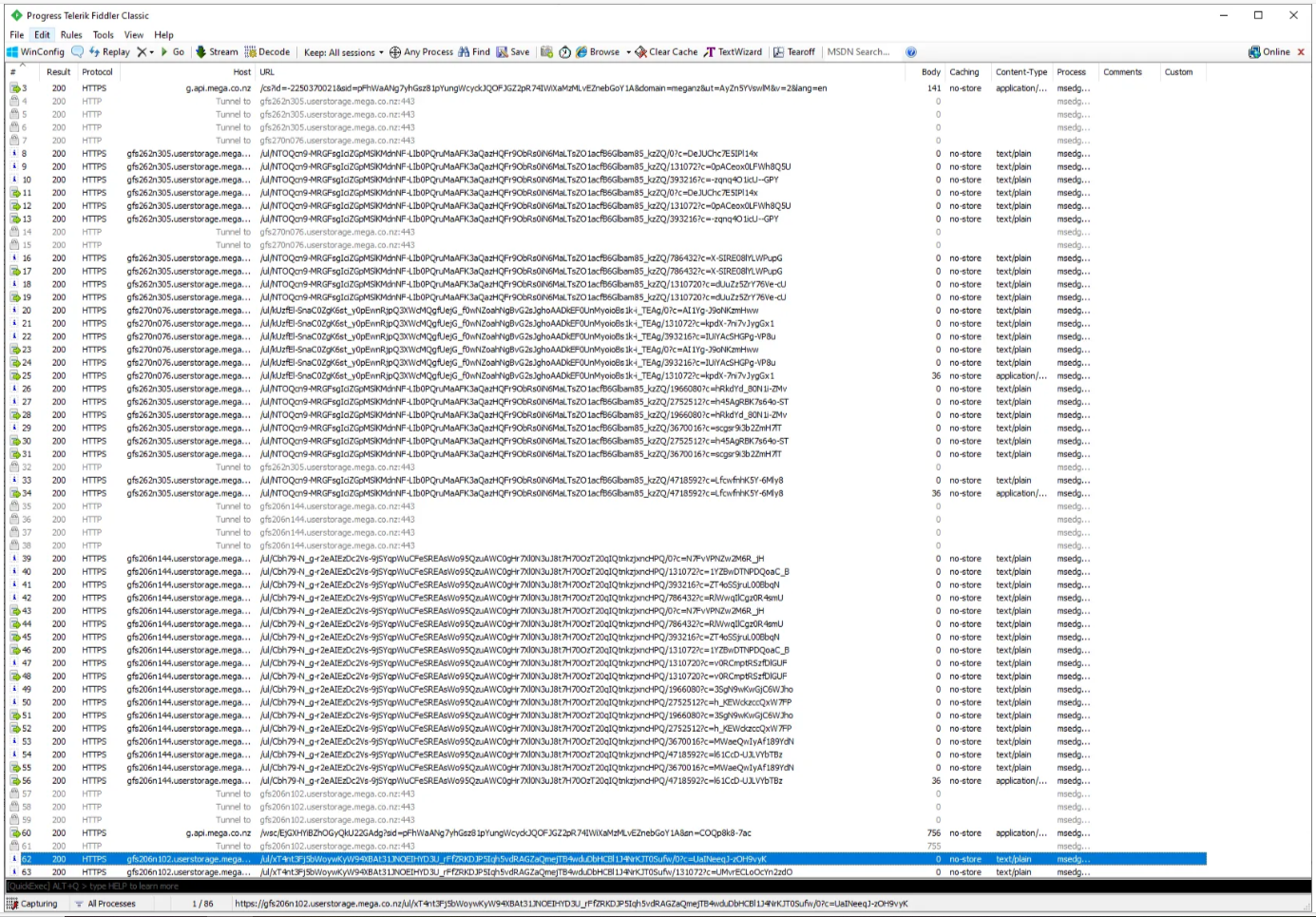
This information is valuable as it allows us to determine the number of uploaded files and the corresponding timestamps.

There seems to be a correlation between file size and the HTTPS post request size, which requires further investigation.
Summary
Threat Actors are always changing their tools and techniques but with Mega’s love for privacy, encryption and its simplicity, its likely that, at least for the meantime, it will remain towards the top of the list when it comes to data exfiltration.
Remember, as defenders we are always one step behind. It’s only by supporting each other and sharing with the community that we can try to catch up.
I hope that the information provided in this post can help some of you get to the answers you need a little faster.
Don’t forget! if you find evidence of data exfiltration to MEGA and you’ve been able to identify a user account or even just the egress IP addresses and timeframe, this can be used by your legal counsel to have the account closed — MEGA are usually pretty good with this. (this is not legal advice, I am not a lawyer….).